Custom UTM Parameters: Complete Guide to Advanced Campaign Tracking
You’re tracking campaigns with UTM parameters. Source, medium, campaign, and the data flows into GA4. But here’s the problem: standard UTM parameters don’t tell the whole story.
Which influencer actually drove those conversions? What region responded best to your campaign? Which audience segment clicked through from that LinkedIn ad?
The five standard UTM parameters can’t answer these questions. That’s where custom UTM parameters come in.
In this guide, you’ll learn exactly what custom UTM parameters are, when to use them, and how to set them up in GA4 so you can track the granular campaign data that actually matters for your business.
What Are Custom UTM Parameters?
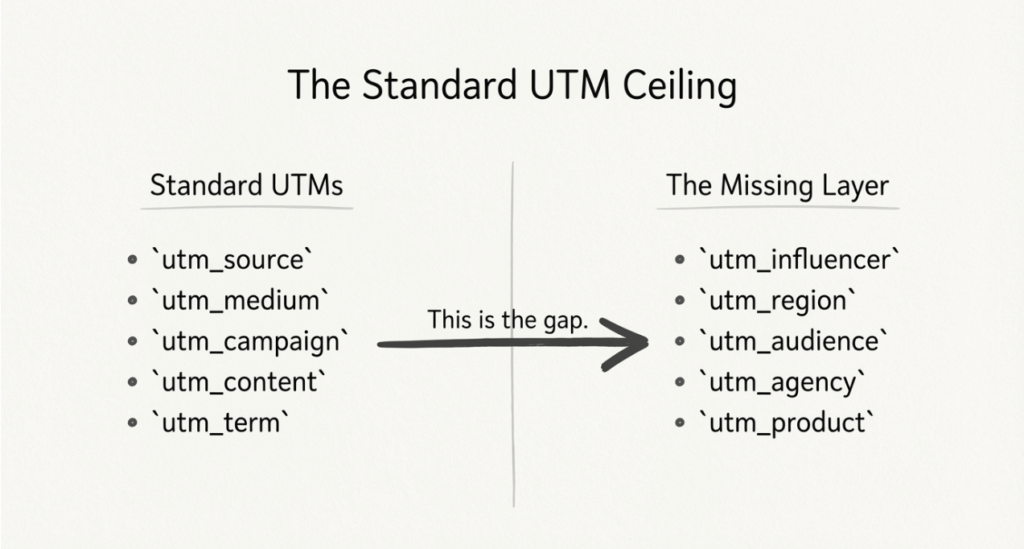
Custom UTM parameters are additional tracking tags you add to URLs beyond Google’s five standard parameters. They let you capture marketing dimensions that the defaults don’t cover.
Standard UTM parameters track the basics: where traffic came from (source), how it arrived (medium), and which campaign sent it. Custom parameters go deeper. They track whatever specific data points matter to your marketing strategy.
Here’s the key difference:
| Standard UTM Parameters | Custom UTM Parameters |
|---|---|
| utm_source | utm_influencer |
| utm_medium | utm_region |
| utm_campaign | utm_audience |
| utm_content | utm_product |
| utm_term | utm_agency |
A standard UTM-tagged URL looks like this:
yoursite.com/landing?utm_source=instagram&utm_medium=social&utm_campaign=summer_sale
With custom parameters, you add more context:
yoursite.com/landing?utm_source=instagram&utm_medium=social&utm_campaign=summer_sale&utm_influencer=jane_smith&utm_region=northeast
Now you know not just that traffic came from Instagram, but specifically which influencer sent it and which geographic region they reached.
Important: Google Analytics doesn’t automatically recognize custom parameters. You’ll need to set up custom dimensions in GA4 to capture and report on this data. We’ll cover exactly how to do that later in this guide.
The 5 Standard UTM Parameters (Quick Refresher)
Before diving into custom parameters, let’s quickly review what the standard five UTM parameters track:
utm_source identifies where the traffic originated. Examples: google, facebook, newsletter, linkedin.
utm_medium specifies the marketing channel or type. Examples: cpc, email, social, referral, organic.
utm_campaign names the specific promotion or initiative. Examples: spring_sale, product_launch, webinar_march.
utm_content differentiates similar content or links within the same campaign. Examples: header_cta, sidebar_banner, text_link.
utm_term originally tracked paid search keywords. Now commonly used for any keyword or topic targeting. Examples: running_shoes, marketing_software, utm_tracking.
For a complete breakdown of each parameter, check out our complete guide to UTM parameters.
These five parameters work great for basic campaign tracking. But when you need more granular insights, custom parameters fill the gaps.
When to Use Custom UTM Parameters
Not every campaign needs custom UTM parameters. Adding too many creates unnecessary complexity and cluttered URLs. Use custom parameters when standard UTMs don’t provide the specific insights you need.
Here are the scenarios where custom parameters make sense:
Influencer and Affiliate Tracking
You’re running campaigns with 10 different influencers on Instagram. Standard UTMs tell you traffic came from Instagram. Custom parameters tell you exactly which influencer drove each conversion.
&utm_influencer=jane_doe
&utm_influencer=marketing_mike
This lets you compare performance across partners and allocate budget to your top performers. For detailed affiliate attribution strategies, see our guide on effortless affiliate attribution with UTM short links.
Geographic Segmentation
You’re running the same campaign across multiple regions. Custom parameters let you track which geographic areas respond best.
&utm_region=emea
&utm_region=apac
&utm_region=north_america
This is especially valuable for global brands or companies expanding into new markets.
Audience and Persona Targeting
Your campaigns target different buyer personas or account segments. Custom parameters reveal which audience responds best to your messaging.
 &utm_audience=enterprise
 &utm_audience=smb
 &utm_persona=cmo
 &utm_persona=marketing_manager
For B2B marketers running account-based marketing (ABM) campaigns, this data is essential. According to Gartner, the average B2B buying process involves 27 touchpoints, so understanding which personas engage at each stage matters.
Product-Specific Campaigns
E-commerce and SaaS companies often promote multiple products simultaneously. Custom parameters let you track which products drive the most interest from each channel.
&utm_product=utm_builder
&utm_product=analytics_dashboard
&utm_sku=prod_12345
Agency Performance Comparison
If you work with multiple agencies, custom parameters help you compare their performance objectively.
&utm_agency=agency_alpha
&utm_agency=agency_beta
Offline-to-Online Tracking
This creates clear attribution data for performance reviews and budget allocation decisions.
QR codes on print materials, event signage, or product packaging need tracking too. Custom parameters connect offline touchpoints to your digital analytics.
&utm_magazine=q1_issue
&utm_event=trade_show_2026
&utm_location=store_nyc
Content Format and Funnel Stage
Track how different content formats perform or which funnel stages drive the most engagement.
&utm_format=video
 &utm_format=infographic
 &utm_funnel=awareness
 &utm_funnel=consideration
7 Practical Custom UTM Parameter Examples
Let’s look at real-world examples showing how to structure custom parameters for common marketing scenarios.
Example 1: Influencer Campaign Tracking
Scenario: You’re partnering with three influencers on TikTok for a product launch.
yoursite.com/product?utm_source=tiktok&utm_medium=influencer&utm_campaign=product_launch_q1&utm_influencer=creator_sarah&utm_content=unboxing_video
Custom parameter: utm_influencer=creator_sarah
What it tells you: Which specific creator drove each conversion, so you can calculate individual ROI and optimize future partnerships.
Example 2: Geographic Targeting
Scenario: You’re running LinkedIn ads targeting enterprise accounts in three regions.
yoursite.com/demo?utm_source=linkedin&utm_medium=cpc&utm_campaign=enterprise_demo&utm_region=emea&utm_audience=enterprise
Custom parameters: utm_region=emeaandutm_audience=enterprise
What it tells you: Which regions convert best for enterprise accounts, helping you allocate ad spend geographically.
Example 3: Email Segment Testing
Scenario: You’re sending a promotional email to different subscriber segments.
yoursite.com/offer?utm_source=newsletter&utm_medium=email&utm_campaign=spring_promo&utm_segment=vip_customers
Custom parameter: utm_segment=vip_customers
What it tells you: Which subscriber segments engage most with promotions, informing your segmentation strategy.
Example 4: Multi-Agency Attribution
Scenario: Two agencies manage your paid social campaigns on different platforms.
yoursite.com/landing?utm_source=facebook&utm_medium=paid_social&utm_campaign=awareness_q1&utm_agency=agency_alpha
Custom parameter: utm_agency=agency_alpha
What it tells you: Objective performance comparison between agencies using the same attribution model.
Example 5: Product Line Tracking
Scenario: An e-commerce brand promotes multiple product categories in one campaign.
yoursite.com/shoes?utm_source=google&utm_medium=cpc&utm_campaign=summer_collection&utm_product=running_shoes&utm_category=footwear
Custom parameters: utm_product=running_shoesandutm_category=footwear
What it tells you: Which product categories drive the most traffic and conversions from each channel.
Example 6: Event and Offline Marketing
Scenario: You’re distributing QR codes at a trade show.
yoursite.com/resources?utm_source=qr_code&utm_medium=offline&utm_campaign=tech_conference_2026&utm_booth=main_hall_a3
Custom parameter: utm_booth=main_hall_a3
What it tells you: Which booth locations or materials generate the most scans and subsequent conversions.
Example 7: Content Format Testing
Scenario: You’re promoting the same content in different formats across social media.
yoursite.com/guide?utm_source=linkedin&utm_medium=organic_social&utm_campaign=utm_guide&utm_format=carousel
Custom parameter: utm_format=carousel
What it tells you: Which content formats (carousel, video, static image, text post) drive the highest engagement per platform.
How to Set Up Custom UTM Parameters in GA4
Here’s the critical step most marketers miss: Google Analytics 4 doesn’t automatically track custom UTM parameters. You must create custom dimensions to capture this data.
Without this setup, GA4 simply ignores your custom parameters. The data never appears in your reports.
Follow these steps to set up custom UTM tracking in GA4:
Step 1: Plan Your Custom Parameters
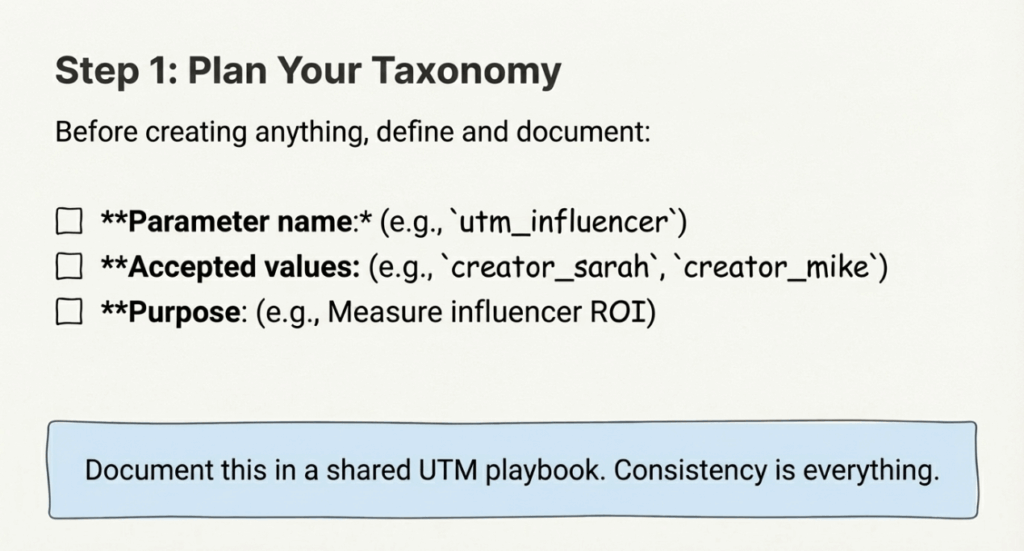
Before creating anything, define your custom parameter taxonomy:
- Parameter name: What will you call it? (e.g., utm_influencer, utm_region)
- Accepted values: What values are allowed? (e.g., specific influencer names, region codes)
- Purpose: Why do you need this data?
- Who uses it: Which teams will create and analyze these links?
Document this in a shared spreadsheet or your UTM playbook. Consistency is essential.
Step 2: Create Custom Dimensions in GA4
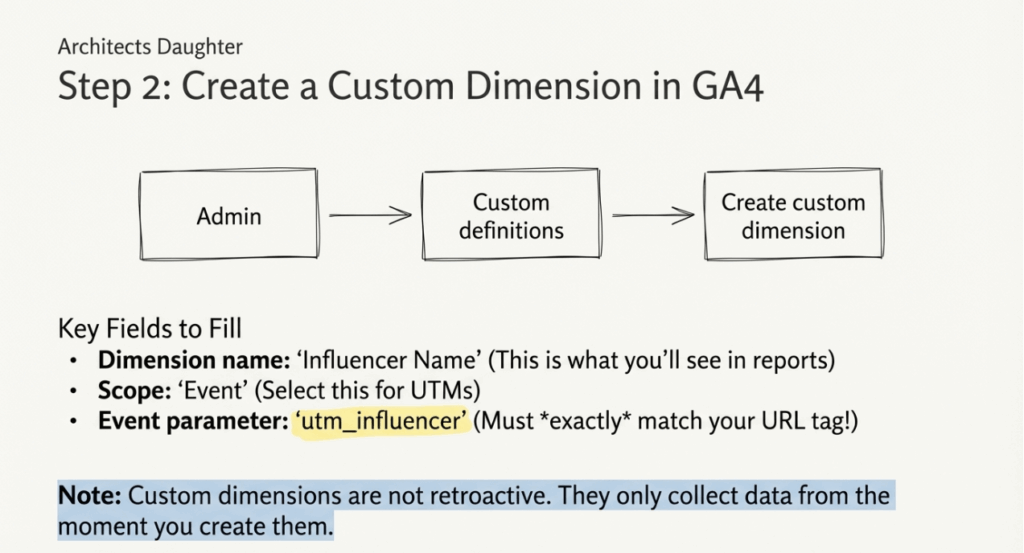
- Sign in to Google Analytics 4
- Click the gear icon (Admin) in the bottom-left corner
- In the Property column, click Custom definitions
- Click Create custom dimension
- Fill in the fields:
- Dimension name: Give it a descriptive name (e.g., “Influencer Name”)
- Scope: Select “Event” for UTM parameters
- Description: Optional but helpful for team documentation
- Event parameter: Enter your custom parameter name exactly as it appears in URLs (e.g., “utm_influencer”)
- Click Save
Repeat this process for each custom parameter you want to track.
Important note: Custom dimensions are not retroactive. GA4 only captures data from the moment you create the dimension. Historical data with that parameter won’t appear in reports.
Step 3: Configure Google Tag Manager (Optional but Recommended)
For more control over how custom parameters are captured, use Google Tag Manager:
- Create a new User-Defined Variable in GTM
- Select URL as the variable type
- Set Component Type to Query
- Enter your custom parameter name as the Query Key (e.g., “utm_influencer”)
- Save the variable
Then update your GA4 Configuration tag to include this variable as an event parameter.
This approach gives you flexibility to transform parameter values or add validation before sending data to GA4.
Step 4: Test Your Implementation
Before launching campaigns with custom parameters:
- Create a test URL with your custom parameters
- Open GA4’s DebugView (Admin > DebugView)
- Click your test URL in a new browser window
- Verify the custom parameter appears in the event data
- Check that your custom dimension populates in reports
If using GTM, also use Preview mode to confirm variables capture correctly.
Step 5: View Custom Parameter Data in GA4
Once set up, access your custom dimension data:
- Go to Reports > Acquisition > Traffic acquisition
- Click the + button to add a secondary dimension
- Search for your custom dimension name
- The dimension now appears in your report
For deeper analysis, create an Exploration report:
- Go to Explore in the left menu
- Create a blank exploration
- Add your custom dimension to Dimensions
- Add relevant metrics (sessions, conversions, etc.)
- Build your custom report
Best Practices for Custom UTM Parameters
Follow these guidelines to keep your custom UTM tracking clean and useful:
Use Lowercase Letters Only
UTM parameters are case-sensitive. utm_region=EMEAandutm_region=emeacreate separate entries in reports. Stick to lowercase to avoid fragmented data.
Replace Spaces with Underscores or Hyphens
Spaces break URLs and create encoding issues. Use utm_influencer=jane_doenotutm_influencer=jane doe.
Establish a Naming Convention
Create a standardized taxonomy before your first campaign:
- Define allowed parameter names
- List acceptable values for each parameter
- Document formatting rules (lowercase, separator characters)
- Share with everyone who creates campaign links
Tools like linkutm’s UTM builder enforce naming conventions automatically, preventing inconsistent parameter values across your team.
Only Track What You’ll Actually Use
Every custom parameter adds complexity. Don’t create utm_bannercolor=blueif you'll never analyze banner color performance. Collect only data that informs decisions.
Document Everything
Maintain a UTM playbook or data dictionary that includes:
- All standard and custom parameters in use
- Acceptable values for each
- Who owns each parameter category
- When parameters were created and why
Test Before Launching
Always verify custom parameters appear correctly in GA4 before launching campaigns. A single typo means lost attribution data.
For comprehensive UTM guidelines, review our UTM best practices guide.
Common Custom UTM Parameter Mistakes to Avoid
These errors undermine the value of custom UTM tracking:
Creating Too Many Parameters
More parameters doesn’t mean better data. If you’re adding five custom parameters to every URL, you’re probably over-engineering. Start with one or two that answer your most pressing questions.
Forgetting to Set Up GA4 Custom Dimensions
This is the most common mistake. You add custom parameters to URLs, launch campaigns, then discover GA4 never captured the data. Always create custom dimensions before launching campaigns with new parameters.
Inconsistent Naming
If one team member uses utm_influencer=JaneDand another usesutm_influencer=jane_doe, your data fragments. Enforce consistency through templates, naming guides, or automated tools.
Using Special Characters
Avoid characters like &,=,?,%, and#in parameter values. These have special meanings in URLs and cause parsing errors.
Not Documenting Parameter Values
Six months from now, will you remember what utm_segment=tier_2` meant? Document every parameter value with clear definitions.
Tagging Internal Links
Never add UTM parameters to links within your own website. This overwrites the original traffic source, making it appear visitors arrived multiple times from internal campaigns. UTMs are for external traffic sources only.
How linkutm Simplifies Custom UTM Tracking
Creating custom UTM parameters manually gets messy fast. Spreadsheets fill up with URL variations. Team members use inconsistent naming. Typos slip through.
linkutm solves these problems:
Automatic Naming Enforcement: linkutm automatically converts parameters to lowercase and replaces spaces with hyphens. No more fragmented data from inconsistent formatting.
Reusable Templates: Save your custom parameter combinations as templates. Create links for your influencer campaign in seconds, with the same parameters every time.
Team Workspaces: Everyone on your team uses the same naming conventions. No more rogue parameter values or undocumented custom fields.
GA4 Integration: Your linkutm data flows directly into Google Analytics 4, so you can analyze custom parameter performance alongside all your other campaign data.
Bulk Creation: Running campaigns with dozens of influencers or product variants? Import them via CSV and generate all your tagged links at once.
Stop wrestling with spreadsheets and start tracking what actually matters. Create your first custom UTM link in seconds.
Custom UTM Parameters FAQs
Do custom UTM parameters affect SEO?
No, UTM parameters don’t impact your SEO or search rankings. They only affect analytics tracking. Search engines treat the base URL and the UTM-tagged URL as the same page, so there’s no duplicate content concern.
How many custom parameters can I create?
There’s no hard limit, but GA4 has limits on custom dimensions (50 event-scoped dimensions per property). More importantly, too many parameters create complexity without proportional value. Stick to parameters you’ll actually analyze.
Will GA4 track custom parameters automatically?
No. GA4 only tracks the five standard UTM parameters by default. You must create custom dimensions in GA4 for each custom parameter you want to capture. Without this step, custom parameter data is lost.
Can I use custom UTMs with Google Ads?
Yes. You can add custom parameters alongside Google’s auto-tagging (gclid). However, for Google Ads specifically, consider using GA4’s data import features or Google Ads’ own tracking options, which may provide more robust integration.
Start Tracking What Actually Matters
Standard UTM parameters answer the basic questions. Custom UTM parameters answer the questions that actually drive business decisions.
Which influencer delivers the best ROI? Which region responds to your messaging? Which audience segment converts? Custom parameters give you these answers.
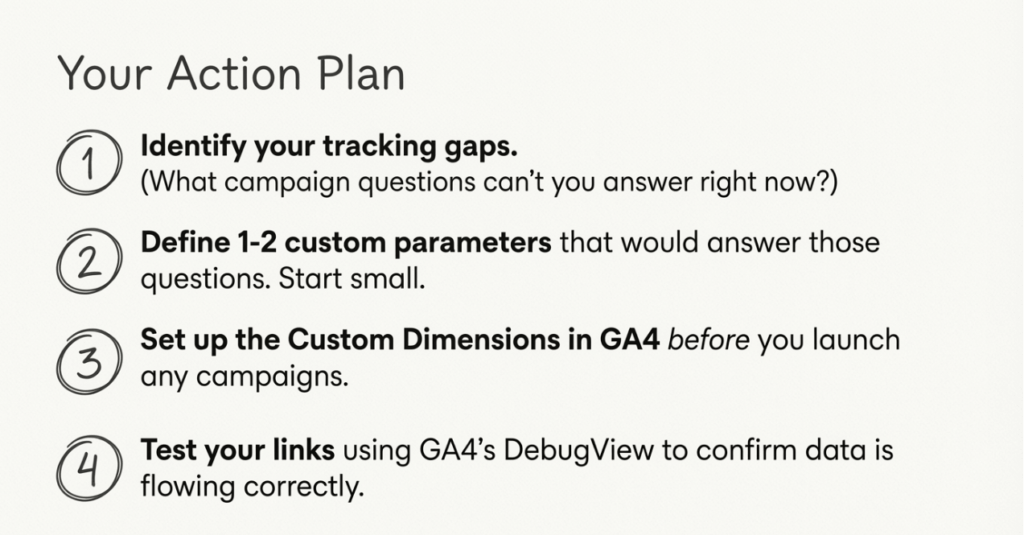
Here’s your action plan:
- Identify your tracking gaps. What campaign questions can’t you answer with standard UTMs?
- Define 1-2 custom parameters that would answer those questions.
- Set up custom dimensions in GA4 before launching any campaigns.
- Document your naming convention so your team stays consistent.
- Test thoroughly to confirm data flows correctly.
Within a few campaigns, you’ll have granular attribution data that transforms how you allocate budget and optimize performance.
Ready to simplify custom UTM tracking? linkutm makes it effortless with automatic naming enforcement, reusable templates, and GA4 integration built for marketers who need more than basic campaign tracking.